New Features
- CWP Office Online Time-out on Edit
Introduced in Release 91, the Office Online ability for multiple people to edit a document will see a minor change in its functionality.
When a user is in a document in edit mode and has not made any changes to a document within an organization's defined time period, a prompt will display informing the user to take action; close the document or go into view mode with a one-minute count down timer. If the user takes no action in the specified time, the document will switch to viewing mode instead of closing the document completely.
This will improve the user experience, as the user is not forced out of the document and must go and reopen it.
Additionally, the inactivity timer will only apply to files located in SharePoint and OneDrive. - Create and Upload File and/or Folders
For creating and uploading files and folders, we now have two separate policies for each, Allow files to be uploaded to shared directories and Allow folders to be created to shared directories(NEW). In the past the former policy allowed both files and folders to be created and uploaded. Now, you can fine tune your policy with these two settings.
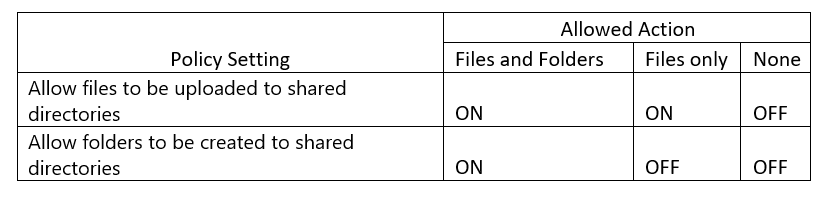 If you allow files to be uploaded then you can optionally allow for folder creation.
The new option will be accompanied by an Audit Event named Options Update that will contain the previous and current value of the setting when the user selects see details in the Audit Event.
Additionally, when both parent policies are disabled, create & upload folders will remain disabled and hidden from the Policy menu.
Note: for the feature to work All Folders needs to be selected in the Create & Upload Option. - Reviewing Recipients in a Trusted Share
When a user hovers their mouse over a Recipient name in a Trusted Share Recipients menu it will now display the Name and Email Address of the Recipient to allow for easier identification. - Auditing displays full Trusted Share options
During a Trusted Share creation, a "Share Creation" audit event will be generated containing all the Trusted Share's sharing options. - My Shares Filters - Hidden and Unhidden filters
A simple UX change was made to make the My Shares display of filter options more intuitive. We have moved the "Hidden" filter option to the bottom of the list and separated it from all other filter options to make it clear that all other filter options operate on "unhidden" trusted shares, while the "Hidden" filter shows all trusted shares that are hidden. - Recipient suggestions from the organization's user directory - Microsoft Graph Search functionality
Organizations that have opted to enable Graph Search functionality will now be able to auto suggest users via lookup in the corporate user directory when typing an Email Address during the creation of a Trusted Share. This should simplify the process of adding internal recipients to a trusted share. We are looking to enhance this lookup capability over time to enable simpler external recipient lookups also. - New Audit Events
Two new Audit Events for PDF Download and Print have been added to Auditing.